〰️ Post Process Screen Space Outline References
The ASP Screen Space Outline component can be added to a Volume to configure the parameters of screen-space outlines. This page lists the current public parameters based on the categories shown in the UI.
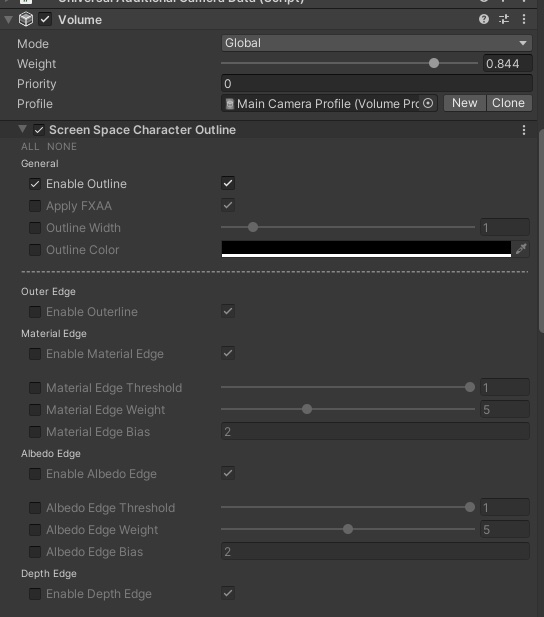
General
| Parameter Name | Description |
|---|---|
| Enable Outline | Whether to enable screen-space outline. Please note that this is currently off by default, so you must enable the override and set the value to true in the Volume. |
| OutlineWidth | Outline width. |
| OutlineColor | Outline color. |
| Enable Scene Object Outline | Whether non-ASP scene objects should also receive screen-space outlines. When enabled, depth and normals-based outlines can also affect scene geometry with valid depth and normals. |
Different Types of Edge
| Parameter Name | Description |
|---|---|
| Enable Material Edge | Whether to enable outlines based on Material ID. This edge type requires ASP character material pass data, so it only affects ASP character pixels. |
| Material Edge Threshold | The threshold used to detect Material Edge. Lower values make it easier for pixels to be treated as outline pixels. |
| Enable Albedo Edge | Whether to enable outlines based on Albedo color differences. This edge type uses character material albedo data to determine outline pixels. |
| Material Albedo Threshold | The threshold used to detect Albedo Edge. Lower values produce more sensitive internal outlines. |
| Enable Depth Edge | Whether to enable outlines based on scene depth differences. This edge type compares the current pixel depth with nearby pixels. |
| Depth Edge Threshold | The threshold used to detect Depth Edge. Lower values make the outline react to smaller depth differences. |
| Enable Normals Edge | Whether to enable outlines based on world-space normal differences. This edge type uses the current _CameraNormalsTexture. Please note that ASP character shaders use a customized DepthNormal pass, so the character normal map detail is intentionally excluded here to avoid excessive unwanted inner edges. |
| Normals Edge Threshold | The threshold used to detect Normals Edge. Lower values make the outline react to smaller surface normal changes. |
💡 In the current public UI, edge setup is mainly exposed as toggle + threshold. Older docs that mention
Outerline,FXAA,Weight,Bias, or separateColor / Weight / Width Distance Fadecontrols no longer reflect the current public workflow.
💡 Users can use the B channel of the model's vertex color as an additional mask for outline visibility. When
vertex color.b = 0, the outline will not be displayed at all in that area. When the value is1, no mask is applied.For example, for areas where you do not want the outline to appear, such as the eyeballs or around the nose, you can set
vertex color.bto0in your DCC tool, such as Blender or Substance Painter.
Distance Falloff
| Parameter Name | Description |
|---|---|
| Enable Distance Falloff | Whether to fade the final outline based on camera distance. |
| Distance Falloff StartEnd | The distance range where the outline starts fading and becomes fully faded. |
In the current version, Distance Falloff directly affects the final visibility of the outline. If you want a strong close-range outline but a softer result at mid and long distance, it is usually easiest to tune the close-range outline first and then adjust this start/end distance range.
Debug
| Parameter Name | Description |
|---|---|
| Enable Debug Mode | Whether to enable debug display mode. |
| Debug Background | The background color used in debug mode. |
| Screen Space Outline Debug Mode | Selects which debug result to visualize. |
Screen Space Outline Debug Mode currently provides:
Material EdgeAlbedo EdgeDepth EdgeNormals EdgeVertex Color MaskCombined Result And Vertex Color MaskCombined Result
Rules for Material IDs
Each material assigned to an ASP Character Panel is given a unique Material ID at runtime. For example, if a character object has 5 Skinned Mesh Renderers and 5 different material assets, those materials will receive IDs from 1 to 5.
Sometimes this is not what you want. For example, a single mesh may use multiple materials, but you may want them to share the same Material ID. In that case, give those material assets the same name. ASP Character Panel will then treat them as a single shared Material ID.
Summary of Material IDs:
Separate Material IDs: Assign unique material assets with unique names to renderers that should have different Material IDs.
Shared Material ID for Multiple Renderers: If you want multiple materials on a single mesh to share the same Material ID, give those material assets the same name.
Note: If the material assets share the same name, place them in different folders in the project to avoid file name collisions.