5️⃣ Specular Highlight
CelShading Mode Properties
| Property Name | Description |
|---|---|
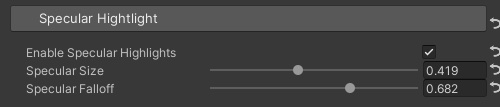
| Enable Specular Highlights | Enable specular highlights. |
| Specular Mask | A mask texture that controls the area where specular highlights are displayed. When the sampled value is 0, no specular highlight is displayed. |
| Specular Color | The color of the specular highlight. |
| Specular Falloff Color | The gradient color at the point of specular highlight falloff. |
| Specular Size | Controls the size of the specular highlight. |
| Specular Falloff | The softness of the specular highlight falloff. The closer to 0, the more obvious the specular highlight boundary is; the closer to 1, the softer the specular highlight boundary is. |
StylizePBR Mode Properties
💡 In StylizePBR mode, the color and intensity of the specular reflection light will be calculated using the standard PBR BRDF model. The color and intensity of the specular reflection light will vary according to the material's metallic and smoothness properties in BRDF model.
However, you can still adjust the Specular Size and Specular Falloff parameters to make the specular reflection look more like a cartoon rendering effect.
When using StylizePBR, if you want to control the area like the specular mask in the CelShading mode, you need to modify the metallic texture’s metallic value to control the area of metallic material.
| Property Name | Description |
|---|---|
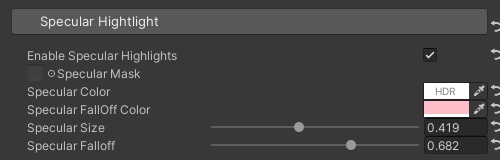
| Enable Specular Highlights | Enables specular highlights. |
| Specular Color | The color of the specular highlight. |
| Specular Size | Controls the influence area size of the specular highlight displayed. When set to 1, the size will be same as the standard PBR’s highlight. |
| Specular Falloff | The softness of the specular highlight falloff. The closer to 0, the more obvious the specular highlight boundary is; the closer to 1, the softer the specular highlight boundary is. |