🟢 8. Surface Options- FOV Correction and Dithering
FOV Correction
Anime characters, especially faces, usually have a lower FOV than normal third-person games. The common FOV for third-person games is above 60~65, while for anime-style characters, a more desirable FOV is 40~45.
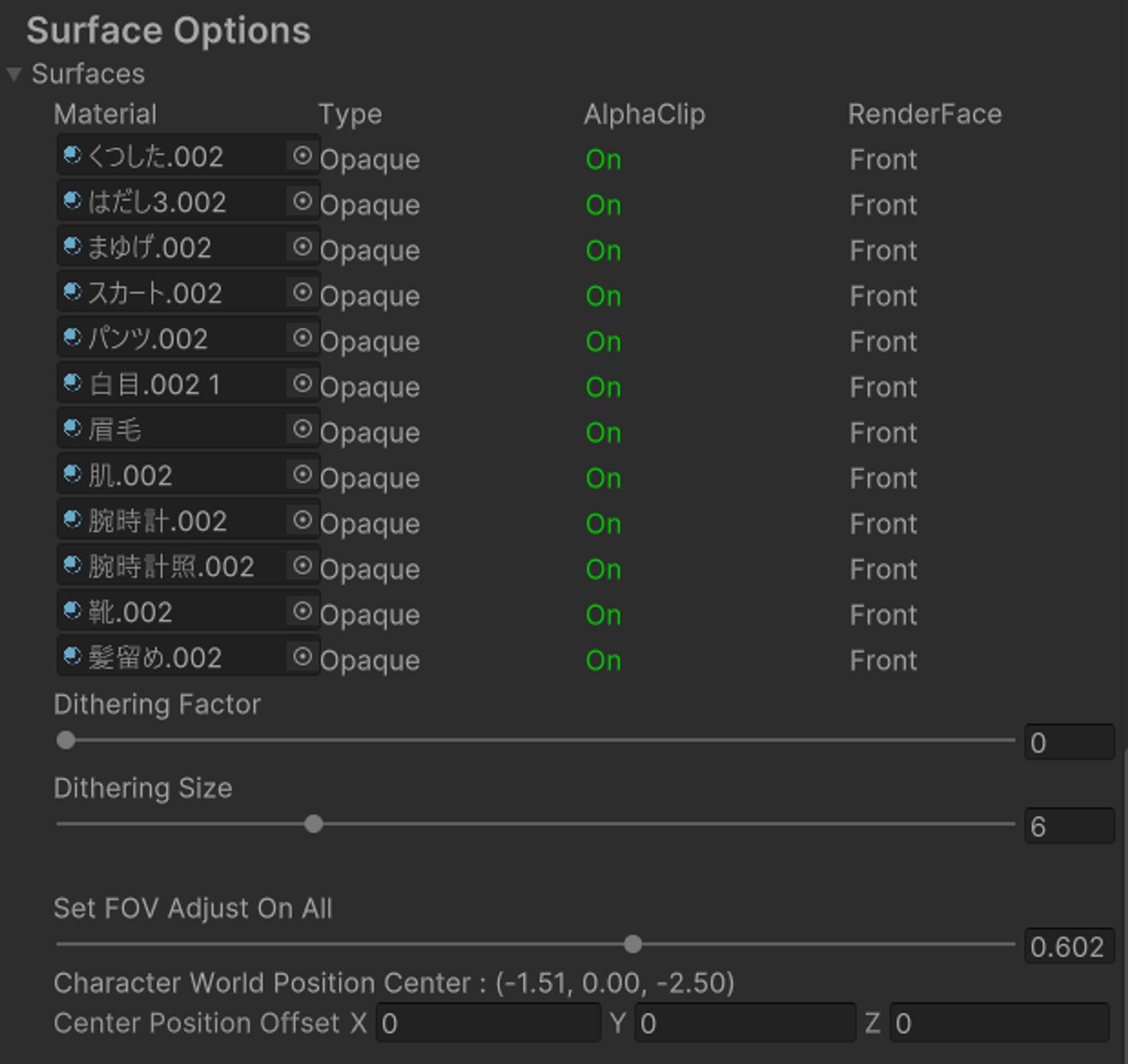
Setup
To solve this problem, ASP's shader provides parameters for vertex correction of perspective effects, which can be found in the Surface Option category of ASP Character Panel:
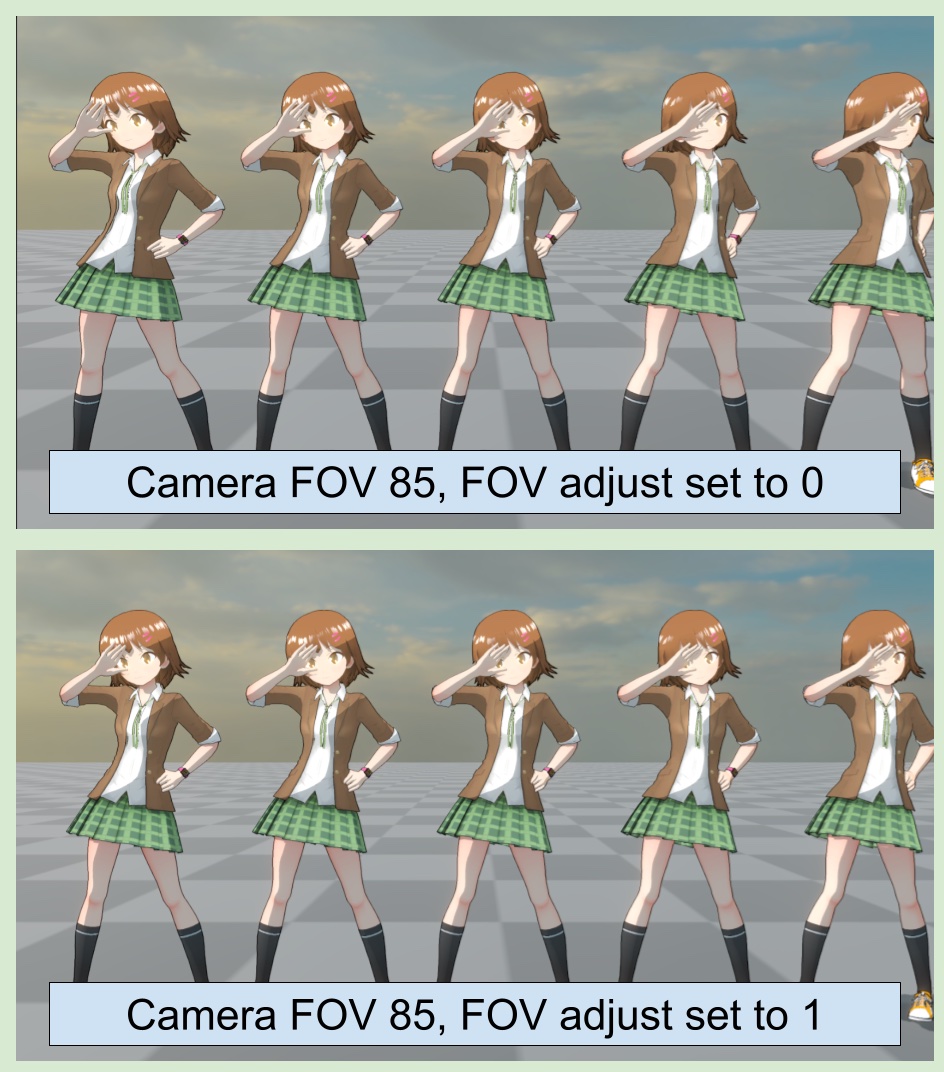
FOV adjust set to 0 means no correction, and set to 1 will make it close to orthographic projection.
The following image is a comparison of before and after FOV correction:
Setting FOV correction through Script
ASP Character Panel itself also provides an API to set FOV correction value.
var myFOVAdjustment = 0.5f;
GetComponent<ASPCharacterPanel>().SetFOVAdjustValueToAllMaterials(myFOVAdjustment );
Dithering Pseudo-Transparency
Characters rendered by ASP do not fully support Transparent materials. This is because character-specific effects such as Tone Mapping and Depth Offset Shadow require depth information to execute correctly. A common practice in games is to use Dithering Pattern to perform Alpha Clip, creating the illusion that the object becomes translucent.
Setup
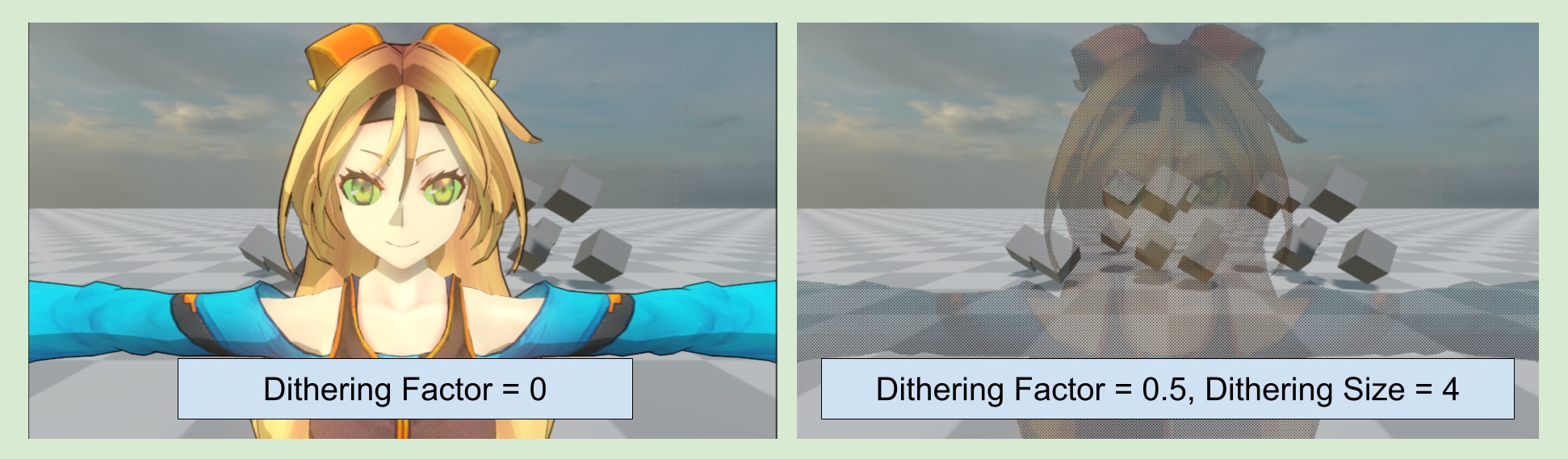
After turning on Alpha Clip for the material, adjust Dithering Factor and Dithering Size under the Surface Options category of ASP Character Panel.
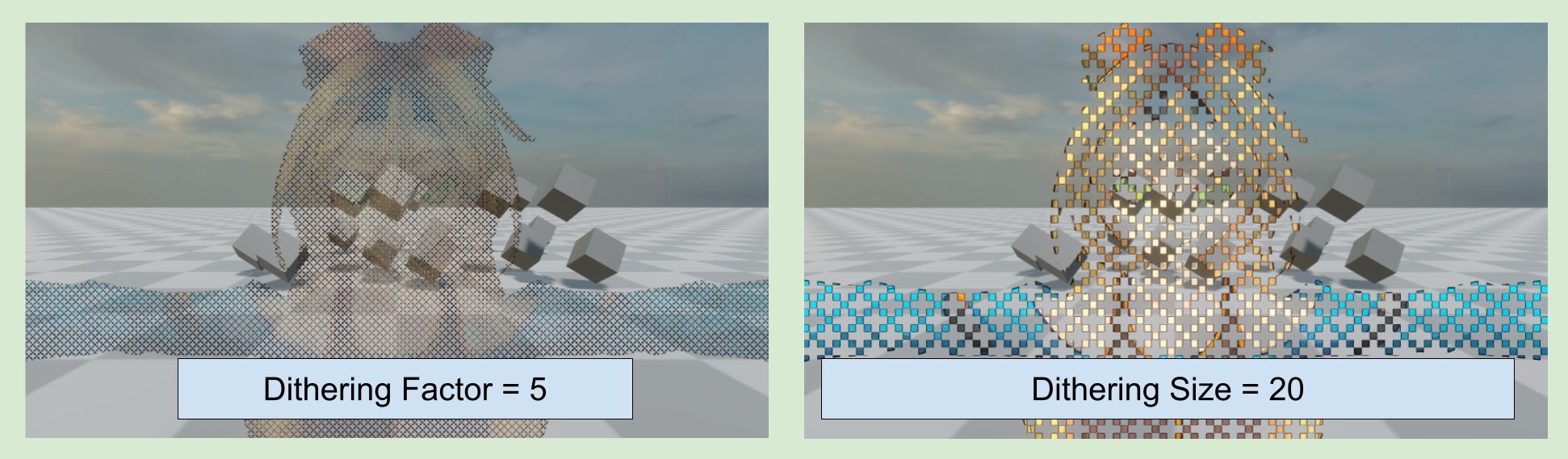
Dithering Factor is used to control the degree of Clip, the larger the Factor, the closer to Pseudo-transparency.
Dither size affects the pixel size of Dither Pattern.
Setting Dithering through Script
ASP Character Panel itself also provides an API to set Dithering.
var myDithering= 0.5f;
GetComponent<ASPCharacterPanel>().SetDitheringValueToAllMaterials(myDithering);

var myDitherSize = 6.0f;
GetComponent<ASPCharacterPanel>().SetDitheringSizeValueToAllMaterials(myDitherSize);