〰️ 15. Object Space Outline Setup / Smooth Normal Bake Flow

This page will explain how to set up object space outlines based on inverted hulls method, and how to use the smooth normal bake tools provided by ASP to improve the quality of outlines.
1. Enable ASP Mesh Outline Renderer Feature
To use object space outlines, you must add the ASP Mesh Outline Renderer Feature to the URP Renderer data. The setup process is as follows:
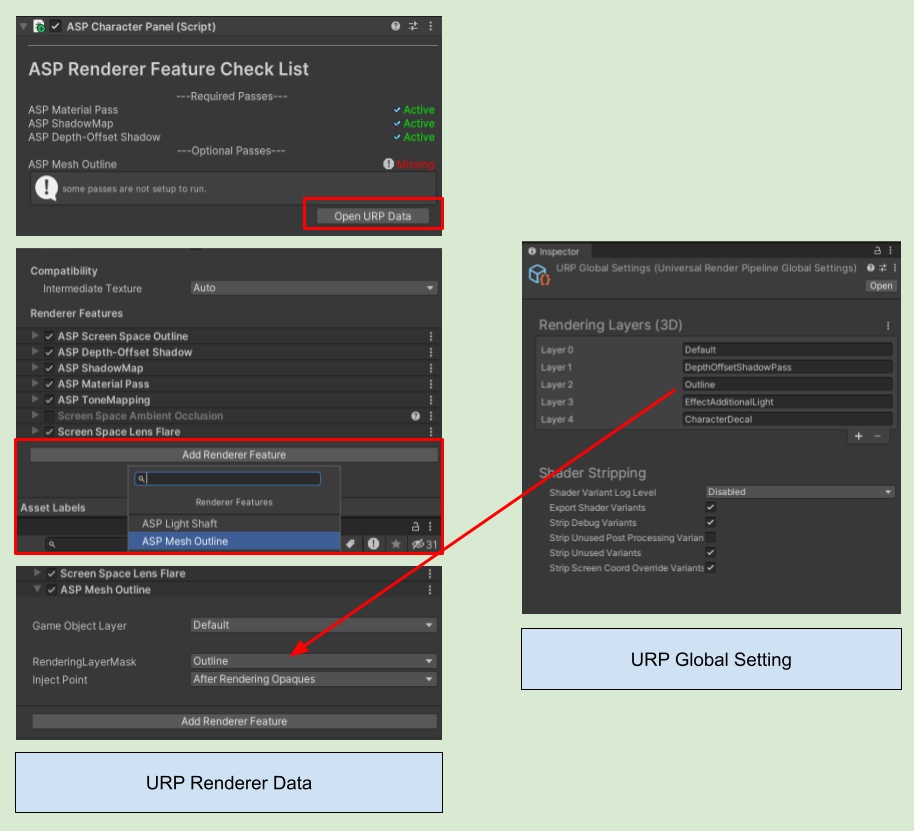
After adding the ASP Mesh Outline renderer feature, back to the current character's ASP Character Panel. At this time, Mesh Outline in the Check List should show Active.
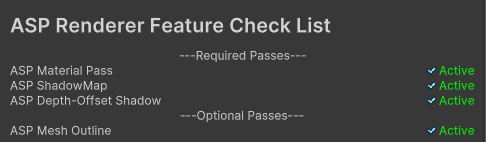
💡 The Check List in the GUI of the ASP Character Panel displays the current status of ASP Mesh Outline. If it is not enabled, you can quickly point to the current URP Renderer data by clicking the Open URP Data button.
2. Use Layer/RenderingLayerMask to control where outlines appear on the character.
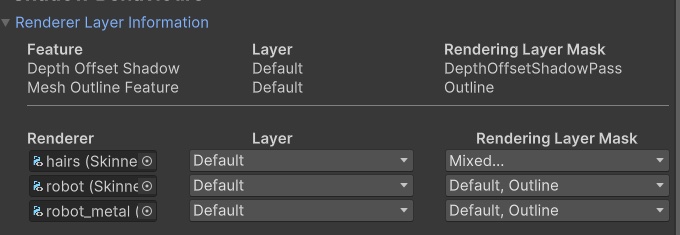
The GUI under Shadow Behaviour category allows you to directly observe all the layers and rendering layer masks specified by the current ASP passes.
In the above figure, the Layer specified by the pass that draws the mesh outline is Default, and the specified rendering layer mask is Outline. Renderers that satisfy this combination will be rendered to the outline pass.
3. Adjust the MeshOutline pramaters
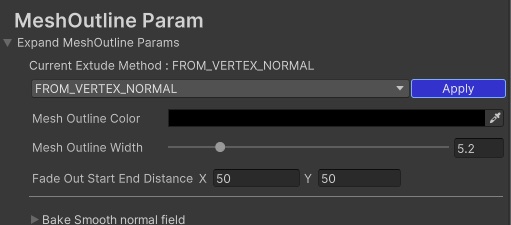
In the ASP Character Panel, under the Mesh Outline Param category, you can control the extrude method of the outline for the renderer that is rendered to the model space outline pass, along with some other paramters that give further control of the object space outline.
| Property Name | Description |
|---|---|
| Current Extrude Method | Outline extrusion mode |
| - FROM_VERTEX_NORMAL | Extrude the model space outline along the vertex normal direction |
| - FROM_UV4 | Use the value stored in UV4 of the model vertex as the extrusion direction |
| Mesh Outline Color | Model space outline color |
| Mesh Outline Width | The extrusion distance of the model space outline (can be seen as the outline width) |
| Fade Out Start End Distance | Outline fade-in start distance and fade-out maximum distance |
| Bake Smooth Normal Field | Expand to display bake smooth normal option |
| Smooth Target | Target model file to be baked (FBX, OBJ) |
| Quick Find | Quickly search for the model file of the current character object |
| Bake Normal Into UV4 | Bake the smoothed normal and store it in UV4 of the current character model |
4. Baking smoothed normal
💡 The normal baking script require install the package "com.unity.collections" (version 1.5.1 or later) in order to work properly.
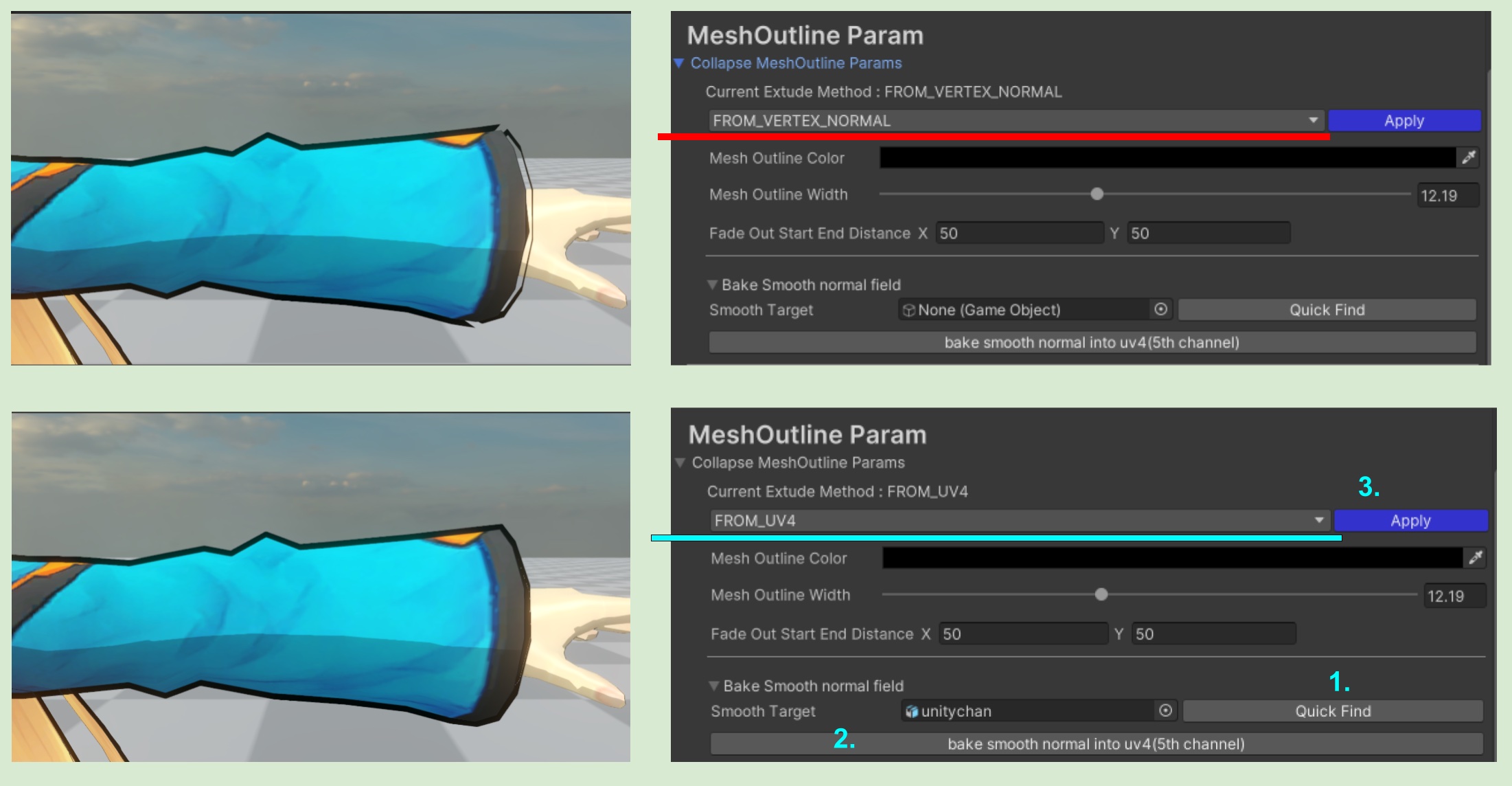
The outline relies on the model's normal information for extrusion. However, unsmoothed normals or vertices with sharp angles can cause the outline to appear broken (as shown in left side of above figure). To address this, ASP provides a tool that bakes smoothed normal information into the model's UV4 channel, which can then be read by the vertex shader.
💡 The model's UV map starts from 0: uv0, uv1, uv2... and so on. Therefore, the uv4 channel is actually the fifth UV channel of the model.
Steps to bake the smooth normal :
Make sure you have installed the “com.unity.collections” package inside PackageManager.
In the ASP Character Panel, click to expand the Bake Smooth Normal Field .
Assign the Smooth Target, by select the model file (FBX, OBJ) you want to bake.
Click the Bake Normal Into UV4 button.
Wait for a few seconds to bake.
Change the Extrude Mode to FROM_UV4 and click Apply.
How to quickly find the FBX file of the current character object
- Click the Quick Find button next to Smooth Target field.
💡 After baking, an FBX file named "character_model_name@smoothRef" will be generated in the same folder as the original FBX. This file serves as a reference for the smoothed normals and should be kept. If deleted, you can regenerate it by baking again.
⏭️ Go to next page 🎨 17. Tone Mapping For Cel-Shading Characters
5. Matching Mesh-Based and Screen-Space Outline Thickness
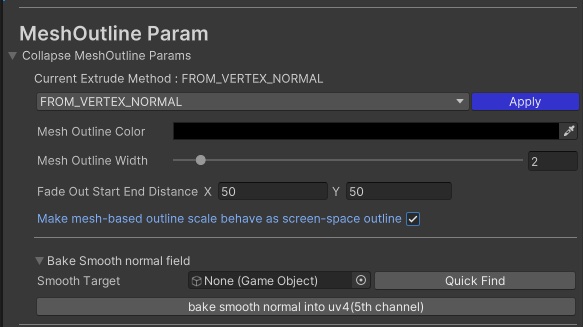
Starting from version 1.03, the ASP Character Panel includes a new option: Make mesh-based outline scale behave as screen-space outline. Enabling this option ensures that the thickness of mesh-based outlines maintain a consist thickness with screen-space outlines, no matter the distance to camera.
As illustrated in the two images below, when a character approaches the camera, the mesh-based outline thickens, leading to a noticeable mismatching with the screen-space outline. By enabling Make mesh-based outline scale behave as screen-space outline, the mesh-based outline thickness remains consistent with the screen-space outline regardless of distance to camera.
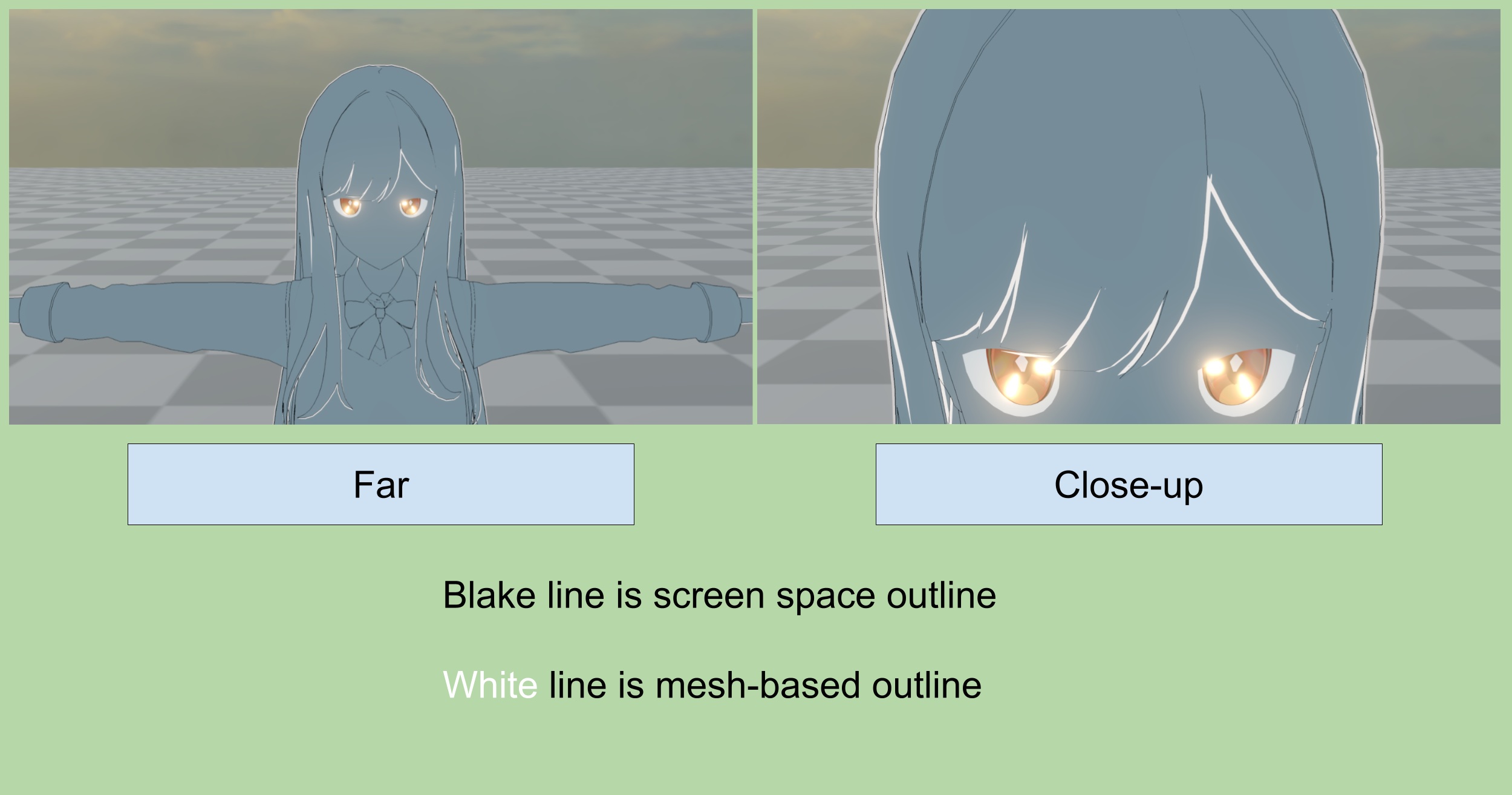
Make mesh-based outline scale behave as screen-space outline - Off
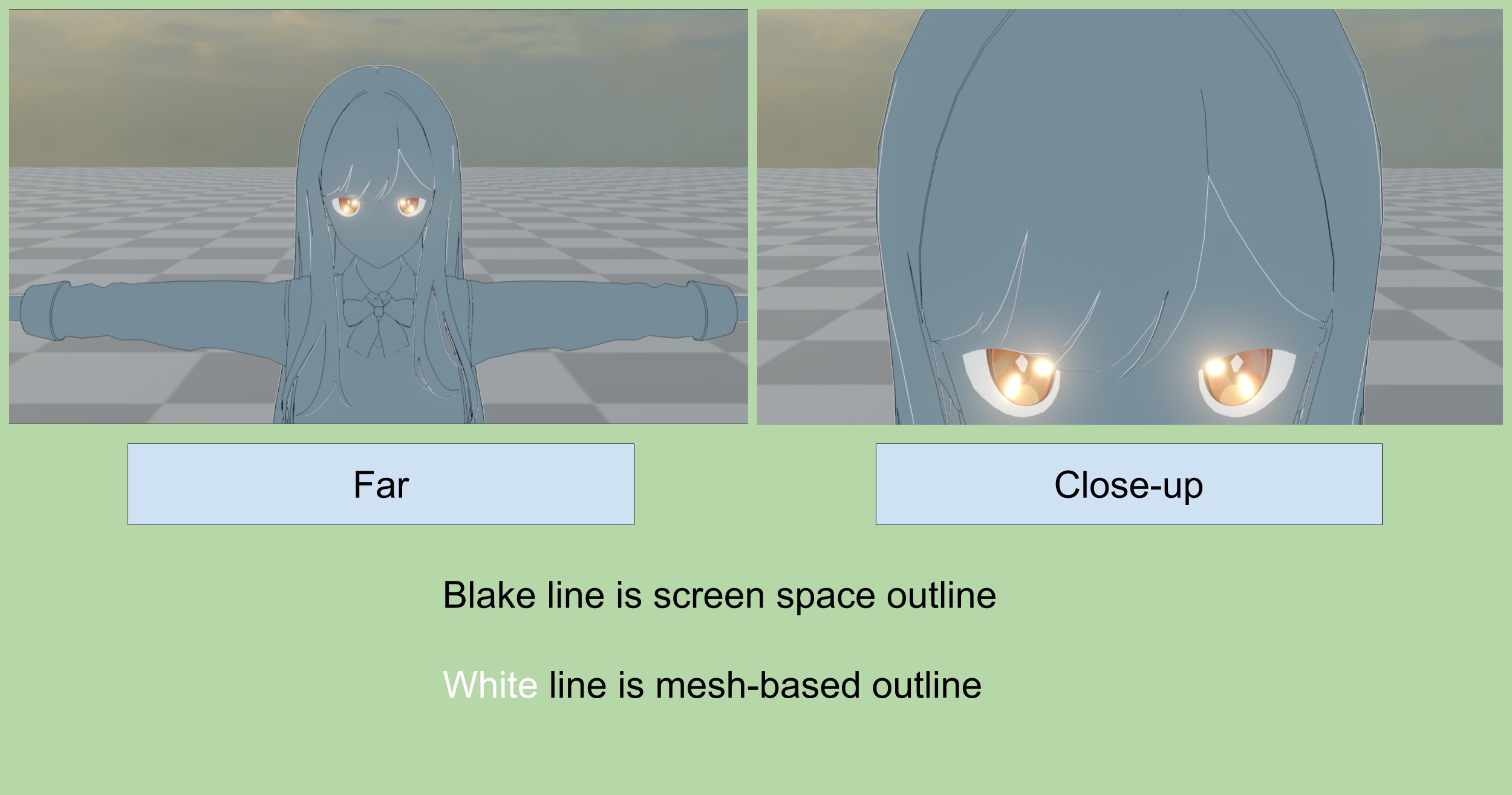
Make mesh-based outline scale behave as screen-space outline - On
💡 It's important to note* that enabling this option also introduces the primary drawback that same as typical screen-space outlines - when characters are very far from the camera, the outlines become excessively thick. To address this, utilize the Fade Out Start End Distance settings to control the fade-out effect of the mesh-based outline based on distance (for mesh-based outlines, fading out means the thickness shrinks to zero)
Meshed-Based Outline Demo