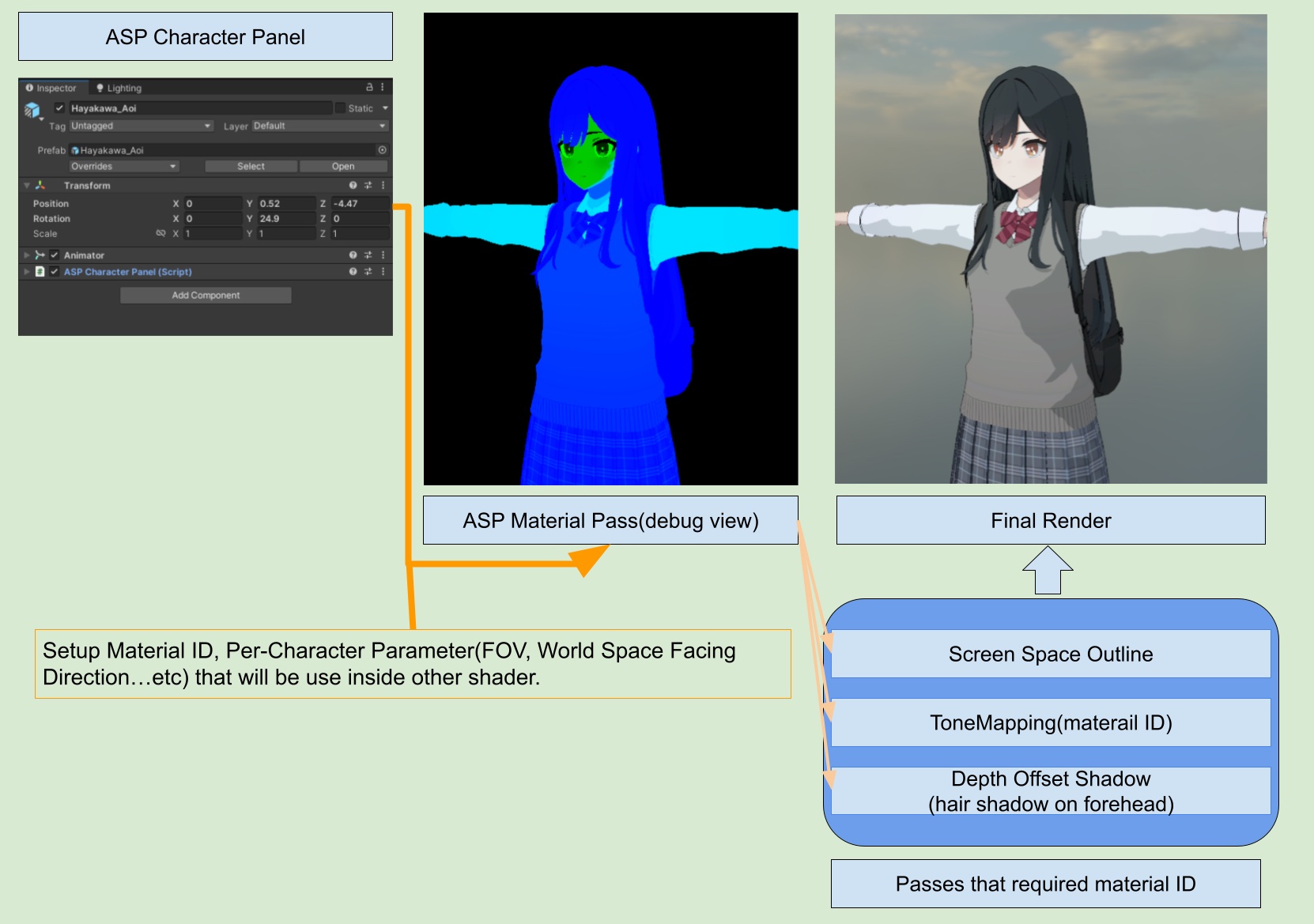
2️⃣ 2. Setup ASP Character Panel (Important)
1. Adding the ASP Character Panel to Current Character's Root GameObject
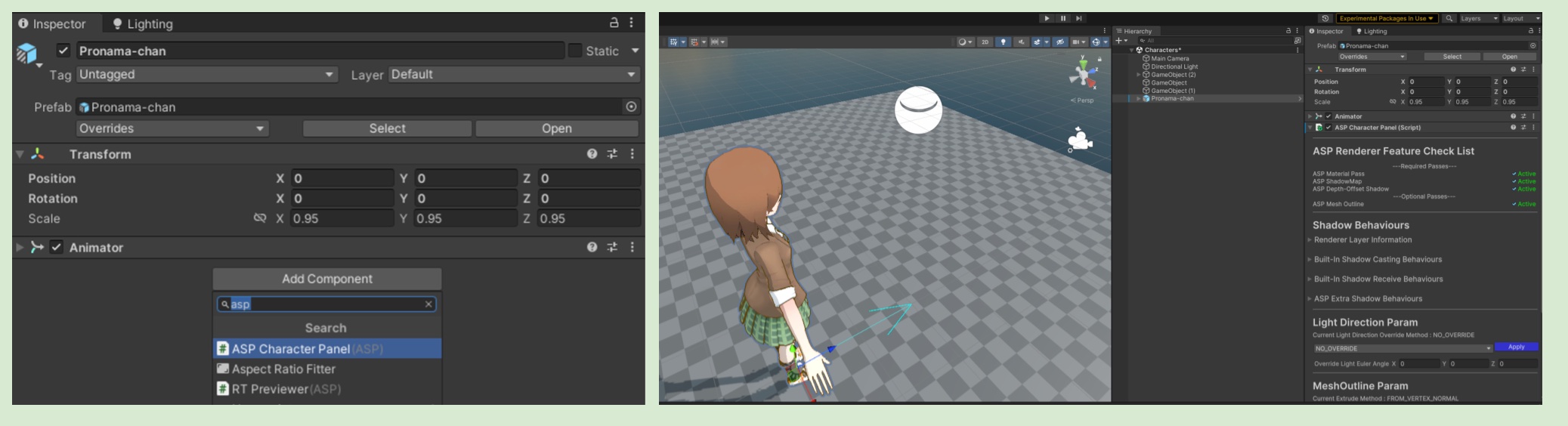
Aside from the renderer feature, the only component in the ASP plugin that needs to be manually configured is the ASP Character Panel. Before you start configuring the shader and material, you must first add the ASPCharacterPanel component to the root game object of the character you want to render. This component will automatically pass some per-character information required by the shader(such as MaterialID, facing direction..etc) at edit/runtime. Without the component the rendering effect will be incorrect.
At the same time, you can also inspect/setup the character’s shadow/mesh outline/surface parameter through ASP Character Panel’s editor UI. Which give the developer some QoL improvement over individually inspect/setup each material/renderer of the character.
Usually, the root game object of a humanoid character in Unity is the the one that has the animator. After adding the ASP character panel to the root game object of the character, you should see something similar to the following screenshot:
2. Confirming the Character's Facing Direction
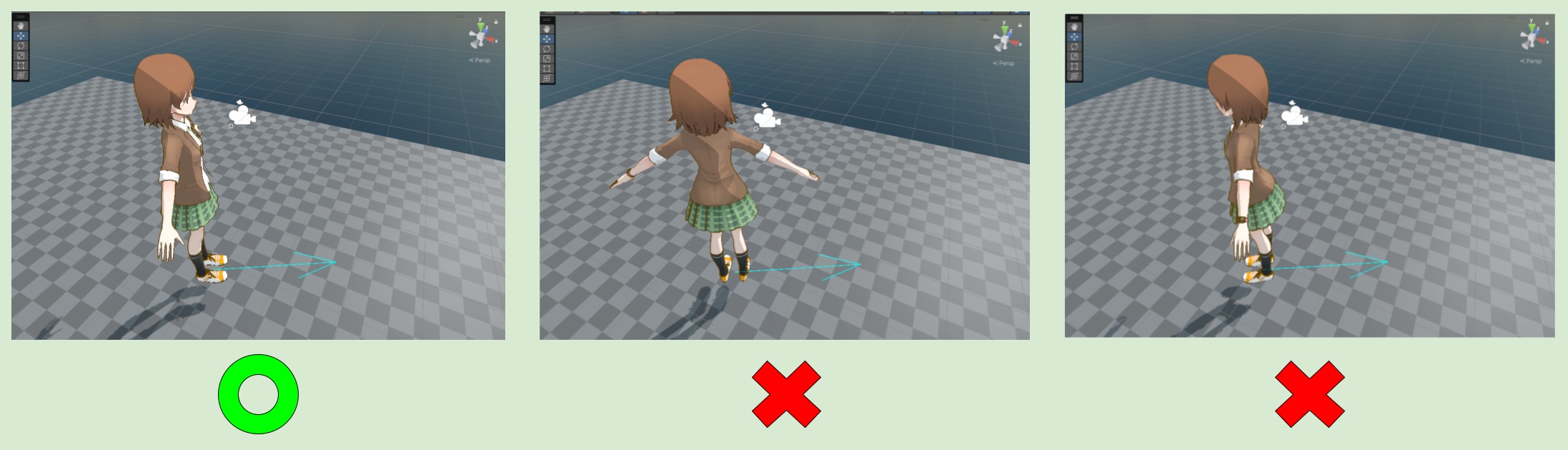
💡 Please note that after opening the gizmo, you will see a light blue arrow. This is the Forward direction of the character as determined by the ASP Character Panel. Please make sure that the forward direction of the character object is facing the same direction as the arrow. Otherwise, the effect in the shader will be incorrect.
⏭️ Go to next page 🏫 5. ASP Character Panel Feature Guide
3. Why do I need to setup ASP Character Panel?
The ASP Character Panel isn't just about giving you control over individual character settings. It's a fundamental component of ASP plugin that makes your shaders work correctly.
Here's other things it responsible to do :
Passing required data to Shaders: The Character Panel send required information like character orientation and world-space coordinates directly into the Shader both in editor and runtime.
Material ID Assignment: ASP Character Panel will automatically setup material id and send it to shaders, so the mesh can render corretly into material pass.
Foundation for Subsequent Passes: Other passes like tonemapping, screen space outline, depth-offset shadow. Will all relied on the result of material pass to render correctly.