🌈 10. Color of The Received Shadow
This page will explain how different Received Shadow Behaviour impact the shadow color.
In the ASP character rendering shader, under the 4️⃣ Diffuse/Lighting Behaviour (Ramp Shading) category, you can use different Received Shadow Behaviour to control the way the received shadow color is displayed.
| Received Shadow Behaviour | Description |
|---|---|
| - Use Ramp End | Use the color at the leftmost end of the Ramp Lighting Map as the shadow color. |
| - Color | Use the Received Shadow Color as the shadow color. |
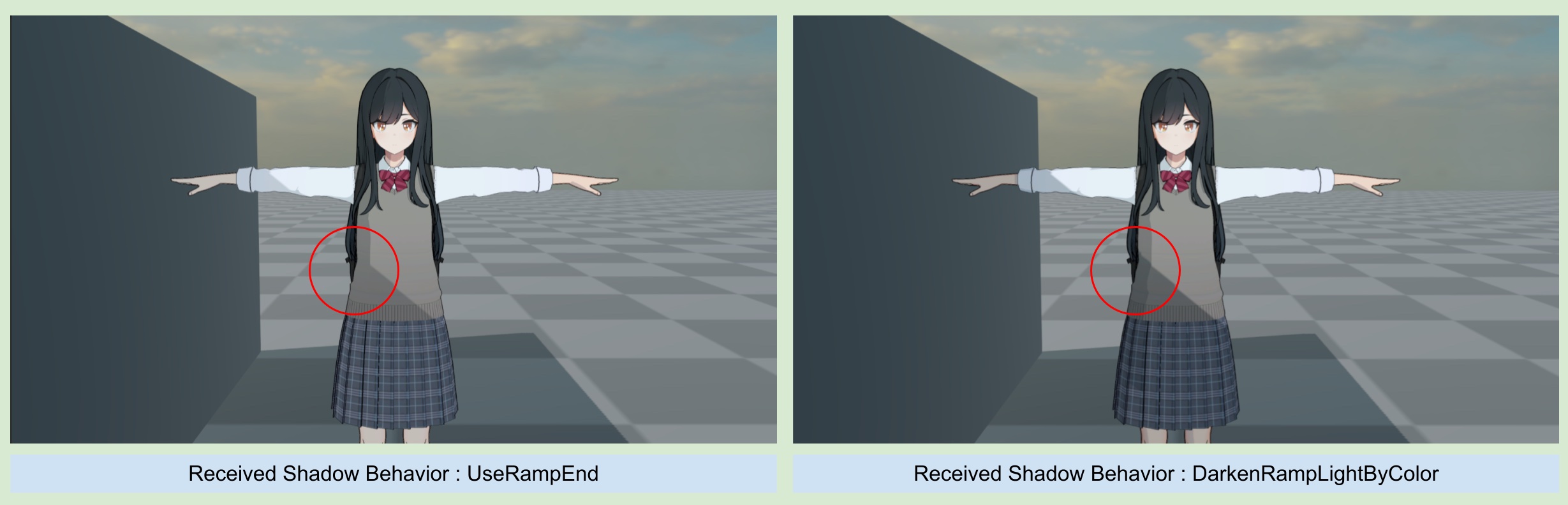
| - DarkenRampLightByColor | Preserve the current pixel color and blend it with the Received Shadow Color to darken it. |
1. Use Ramp End
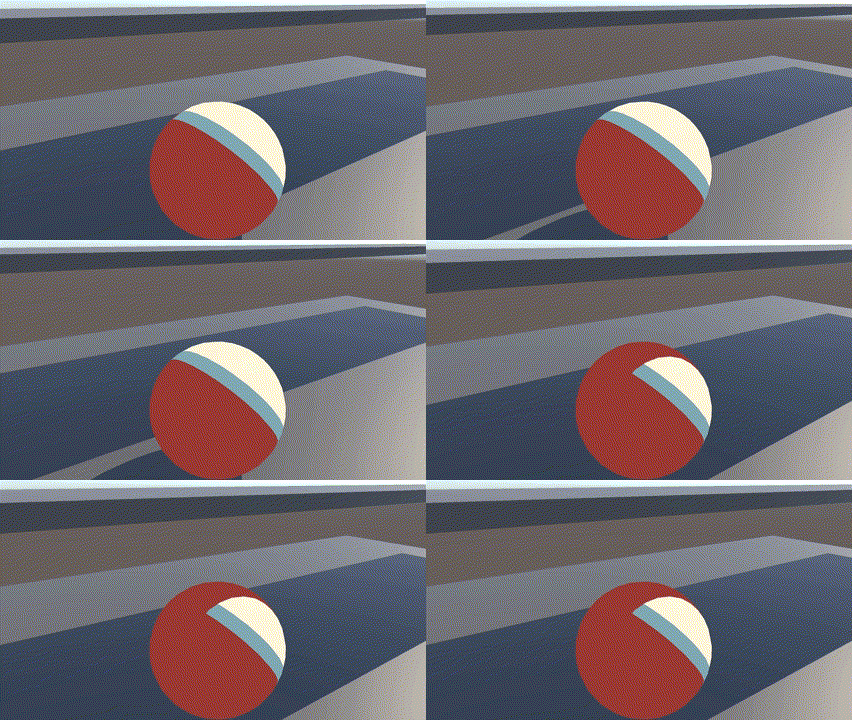
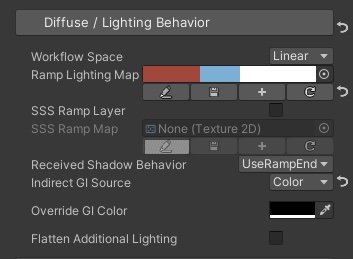
All ASP characters use Ramp lighting Map to represent the changes of light/shadowed. Therefore, the default Received Shadow Behaviour is to use Use Ramp End - for the received shadow color, use the color at the leftmost end of the Ramp lighting Map to ensure consistency with the object's lighting result.
In the figure below, you can observe that the received shadow color is the same as the color at the far left of the Ramp Map.
2. Color
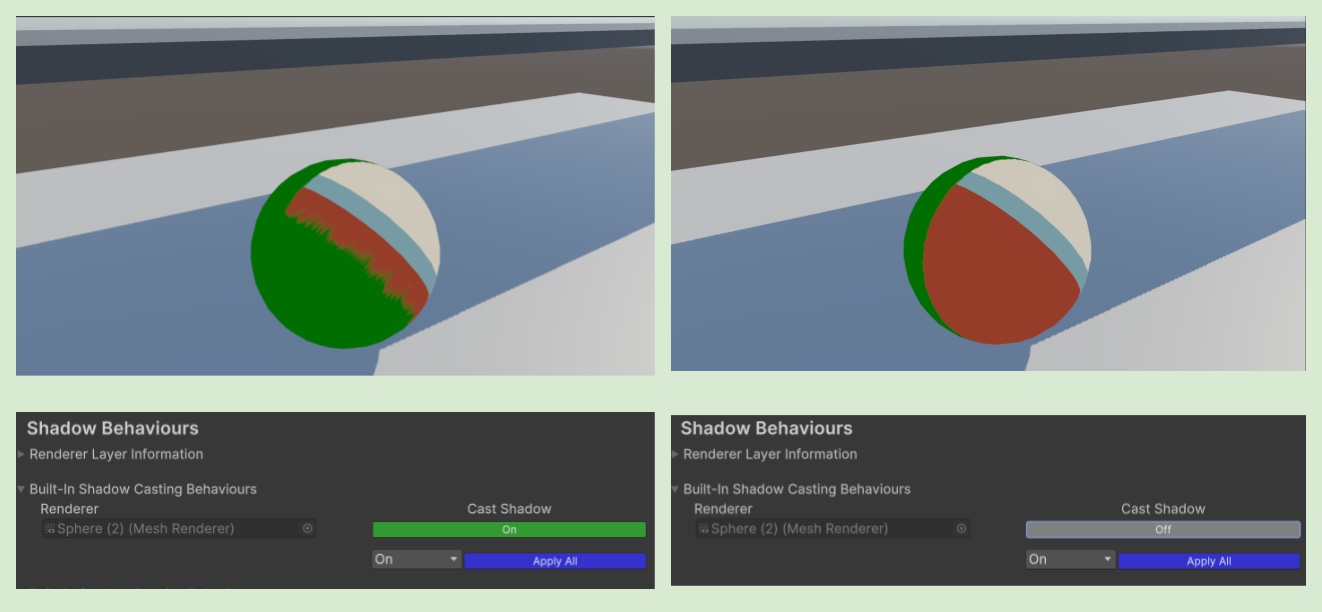
When Received Shadow Behaviour is set to Color, you can force the received shadow to be a specified color.
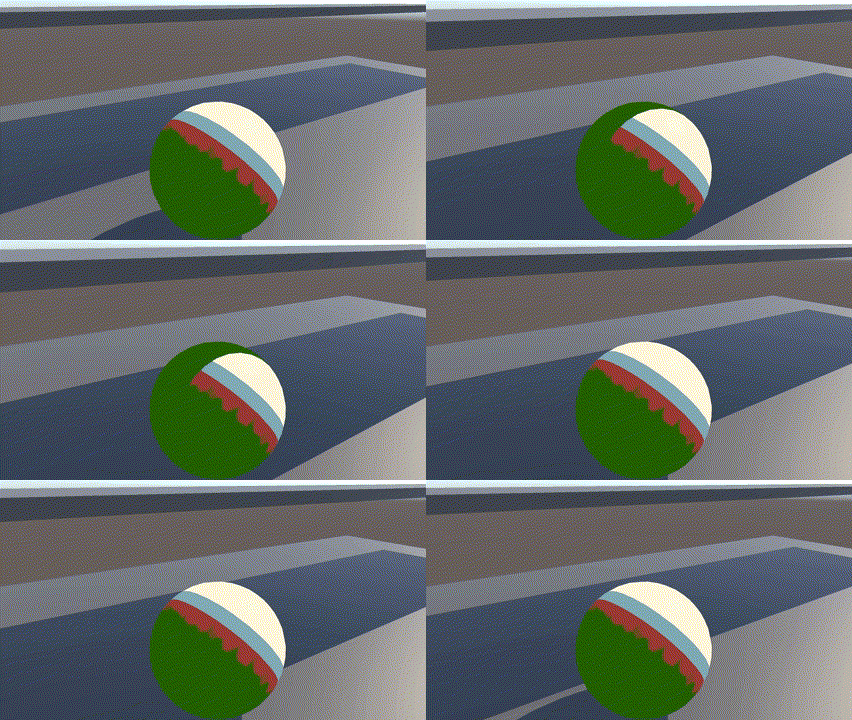
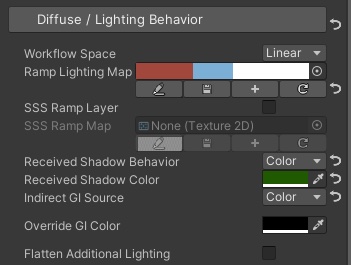
You can notice that in this example, there are jagged shadows on the left side of the sphere. This is because the color of the self-shadow does not match the color of the ramp lighting map. According to the instructions in 🦇 7. Character Shadow Setup Guide (1.3 Update 2025/11/15) (2-1), you can avoid self-shadow by disabling the built-in shadow caster of the current renderer.
3.DarkenRampLightByColor
When using this mode, the received shadow color will be mixed with the specified Color to create a darkening effect. This is a solution that can show the received shadow while retaining the ramp lighting map’s lighting result.
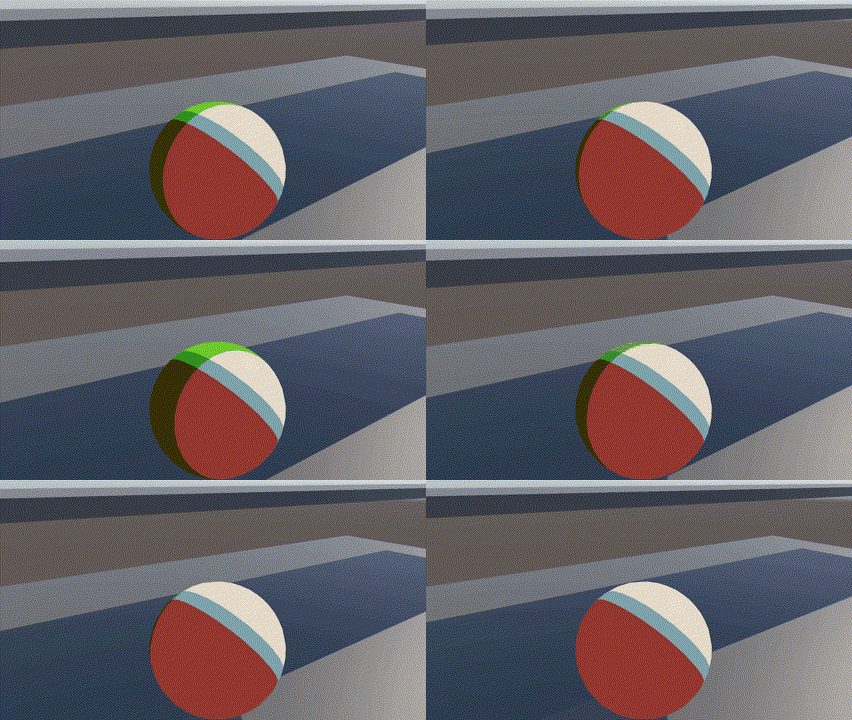
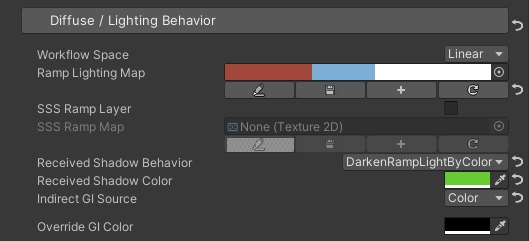
In the DarkenRampLightByColor mode, there will be self-shadow problems just like the Color mode. The solution is the same, just disable the shadow casting of the built-in shadow map.
💡 You can disable the cast of built-in shadow from either the Skinned/MeshRenderer component or the ASP character panel component
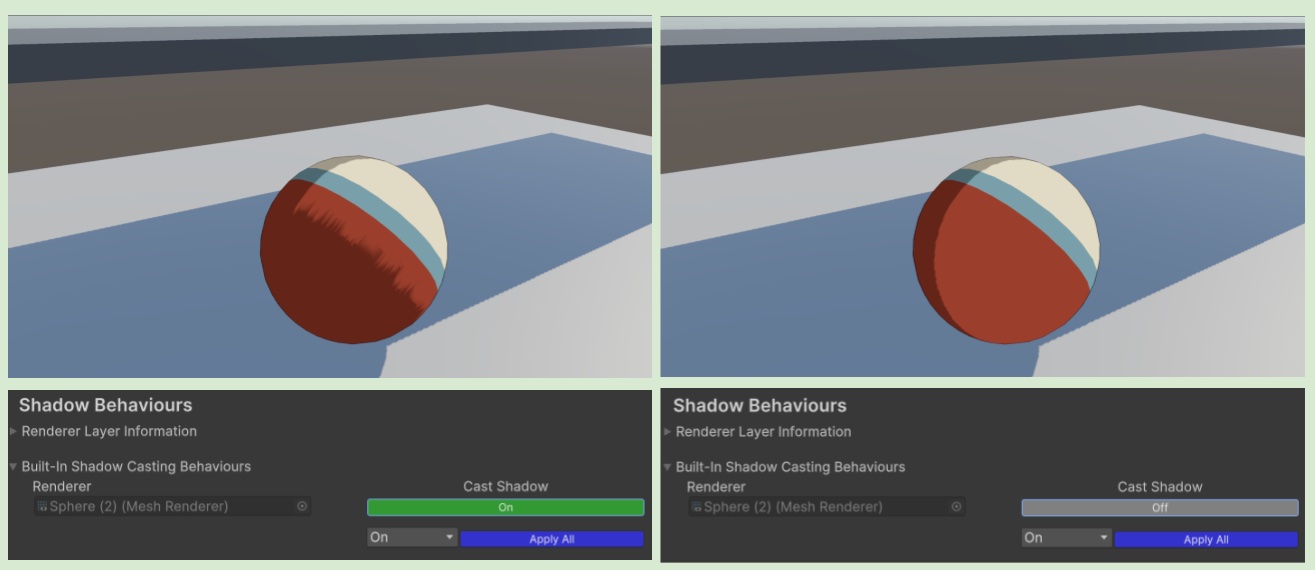
💡 DarkenRampLightByColor is more suitable for cel-shaded characters - It can preserve the hard-tone changes on the character.
⏭️ Go to next page → 👀 11. Eyes(Anime-like) Setup Guide