🦇 7. Character Shadow Setup Guide (1.3 Update 2025/11/15)
This page explains how to configure character shadow casting and receiving through the ASP Character Panel.
This page will demonstrate how to use the ASP Character Panel to configure shadow casting and receiving for characters.
1. Preparation
- First, following the steps in 2️⃣ 2. Setup ASP Character Panel (Important), add the ASPCharacterPanel component to the character's root game object,
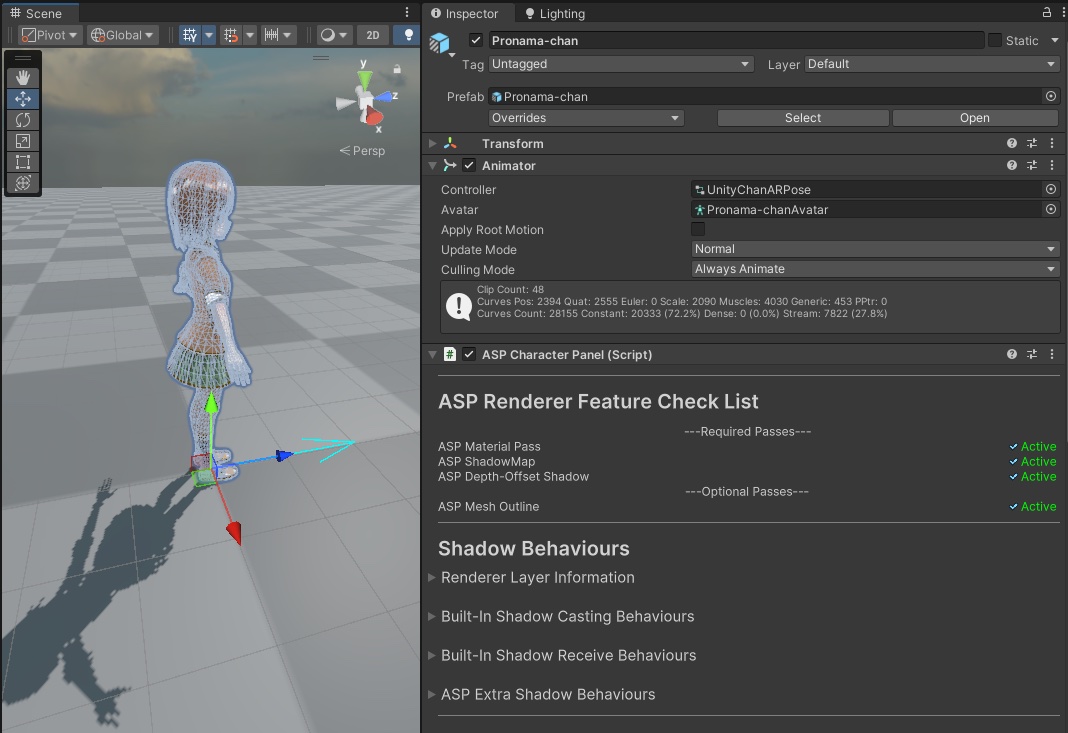
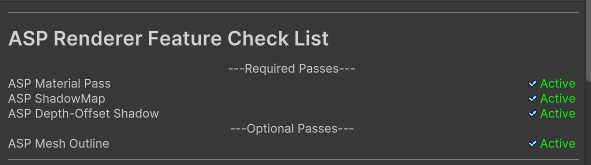
- Make sure all Required Passes in the ASP Render Feature Check List are
Active. The Required Passes are ASP Material Pass and ASP Depth-Offset Shadow. If either isinactiveormissing, follow 1️⃣ 1. Installation Instructions and Prerequisites to configure the URP Asset and Renderer Data.
💡 ASP ShadowMap is not a Required Pass. On Unity 2022.3, 6.0, and 6.3, the checklist shows
ASP ShadowMap (Legacy)only when that Renderer Feature exists and is enabled. Its absence is not reported asmissing. Unity 6.5 does not include it.
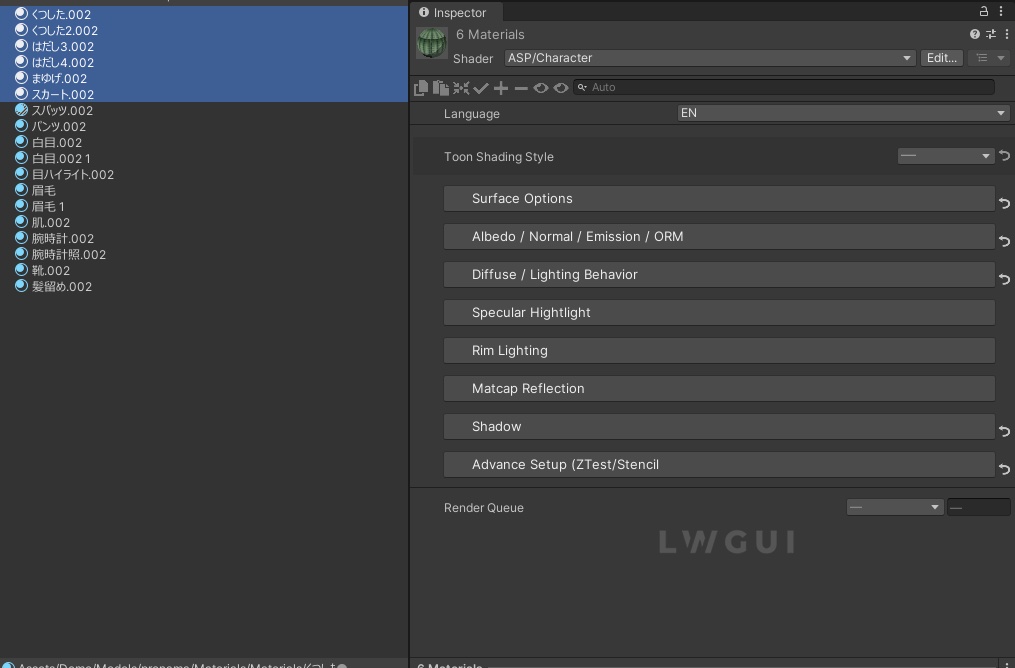
- Confirm that the character materials use
ASP/CharacterorASP/Eye. The ASP Character Panel synchronizes the Cube Proxy's enabled state, center, and size to these materials. The Renderers are additionally drawn into a Character-Only Shadow Map only when the legacy ASP ShadowMap workflow is in use.
2. Configuring Shadows
Return to the current character's ASP Character Panel and scroll to Shadow Behaviours. This category contains five expandable items:
| Item Name | Description |
|---|---|
| Rendering Layer Information | Inspect and set the layer and rendering layer mask for each renderer under the current character. |
| Built-In Shadow Casting Behaviour | Inspect and set whether each renderer under the current character casts shadows to the Unity built-in shadow map. |
| Built-In Shadow Receive Behaviour | Inspect and set whether each material under the current character receives shadows from the Unity built-in shadow map. |
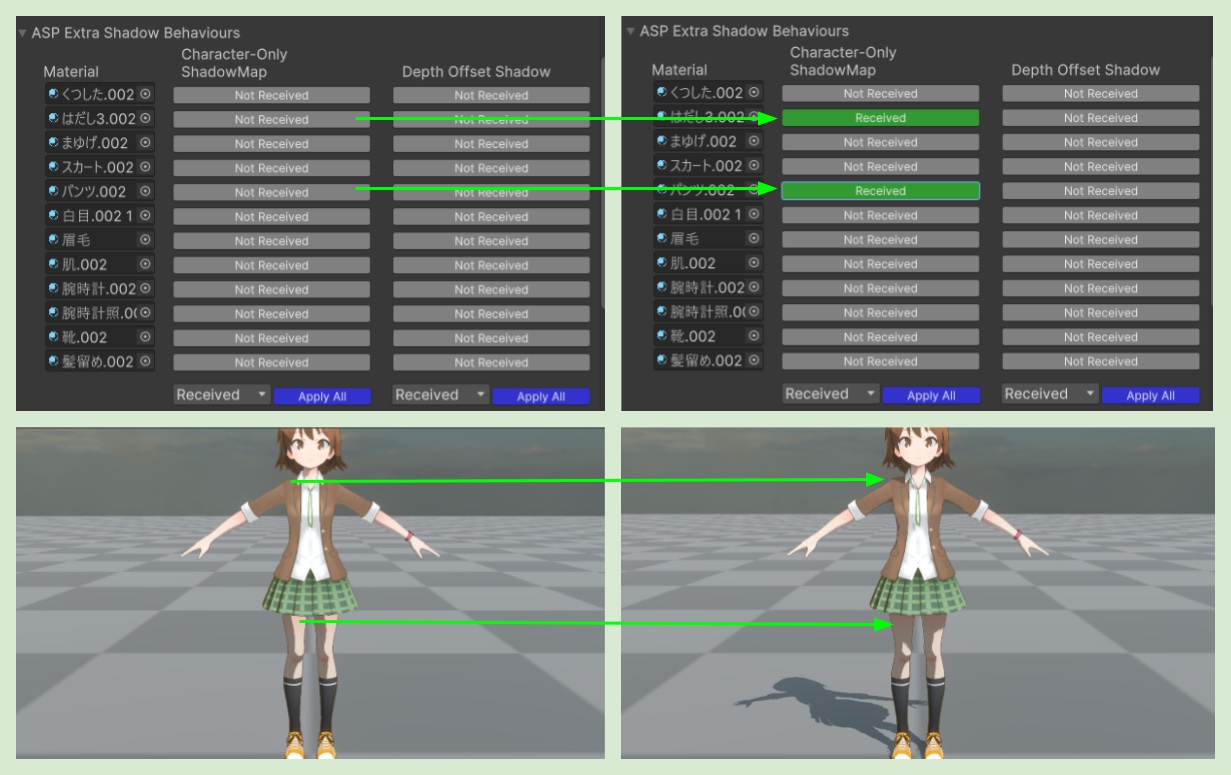
| ASP Extra Shadow Behaviour | Configure Depth Offset Shadow receiving. On older release lines that still contain ASP ShadowMap, this also controls legacy Character-Only Shadow Map receiving. |
| Simple AABB Cube to Remove Self-Shadowing | Configure the recommended Cube Proxy's enabled state, center, and size. |
💡 Use the Cube Proxy for new setups. Unlike the legacy Character-Only Shadow Map, it requires no extra shadow texture, cascades, or character ShadowCaster draw calls. Unity 6.5 provides only this method.
2-1 Enable the Cube Proxy and Configure Shadow Receiving/Casting
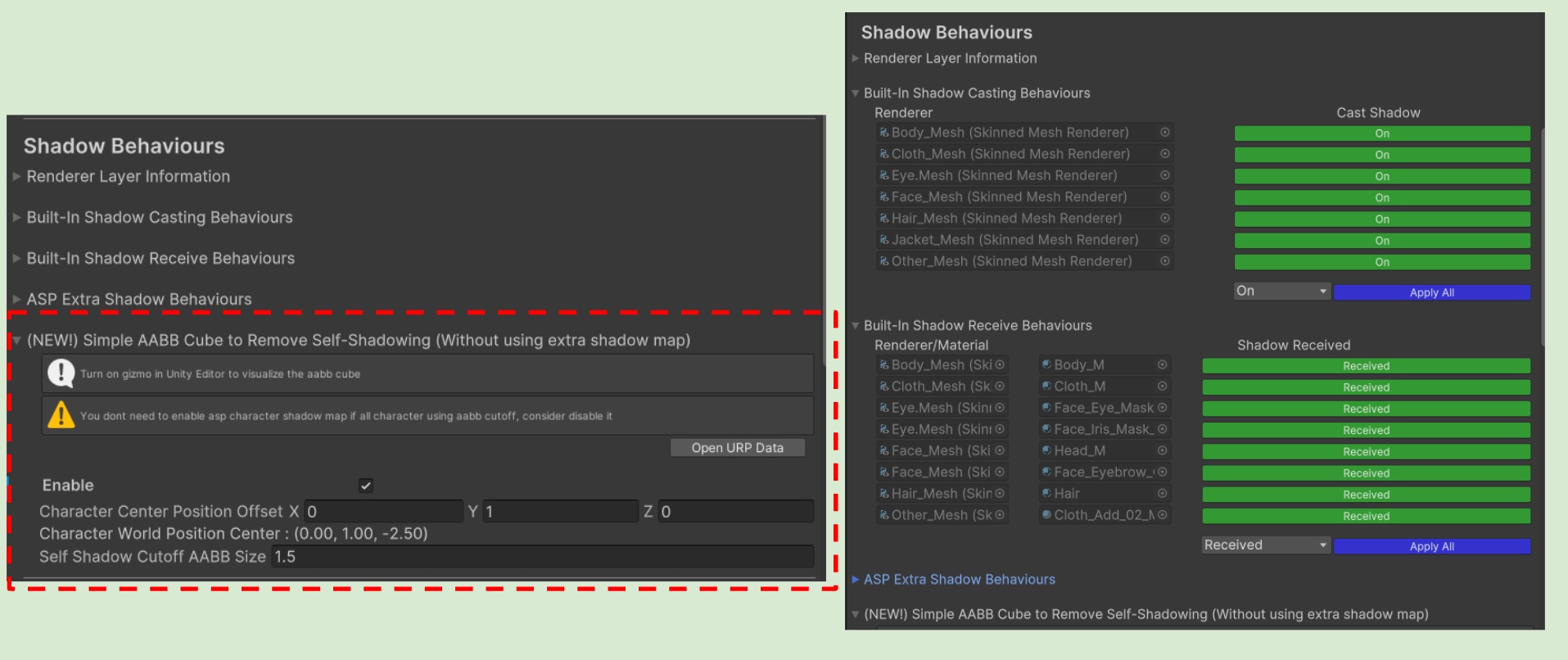
For any character that uses an ASP Character Panel, open the Inspector and look for the Shadow Behaviours section.
Set
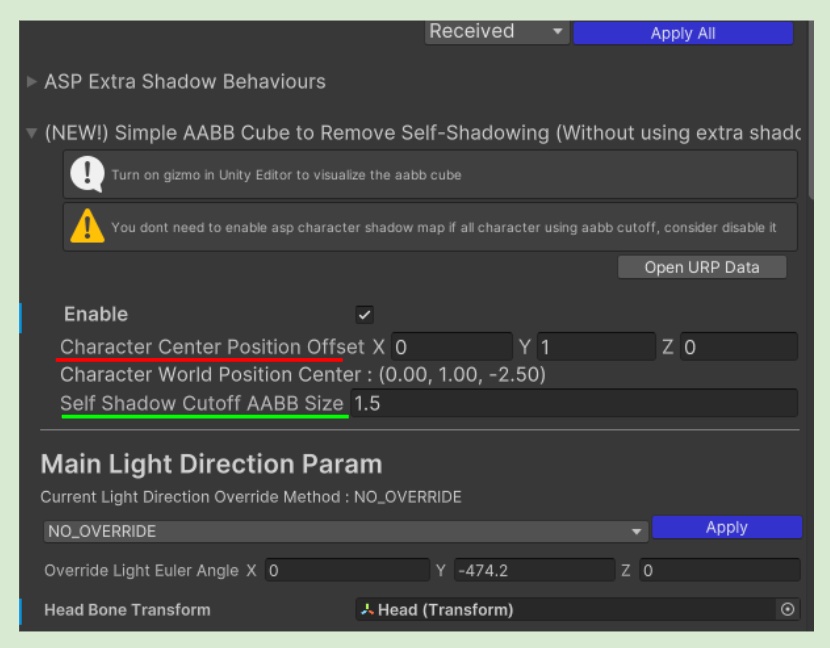
Simple AABB Cube to Remove Self-Shadowing>Enabletotrue.In the rest of the Shadow Behaviours options, ensure the character is correctly set to receive and cast Unity’s built-in shadows (all indicators should appear green).
2-2 Turn On Gizmos and Adjust the Cube Proxy Center and Size
Turn on the Gizmos toggle in the Unity Editor.
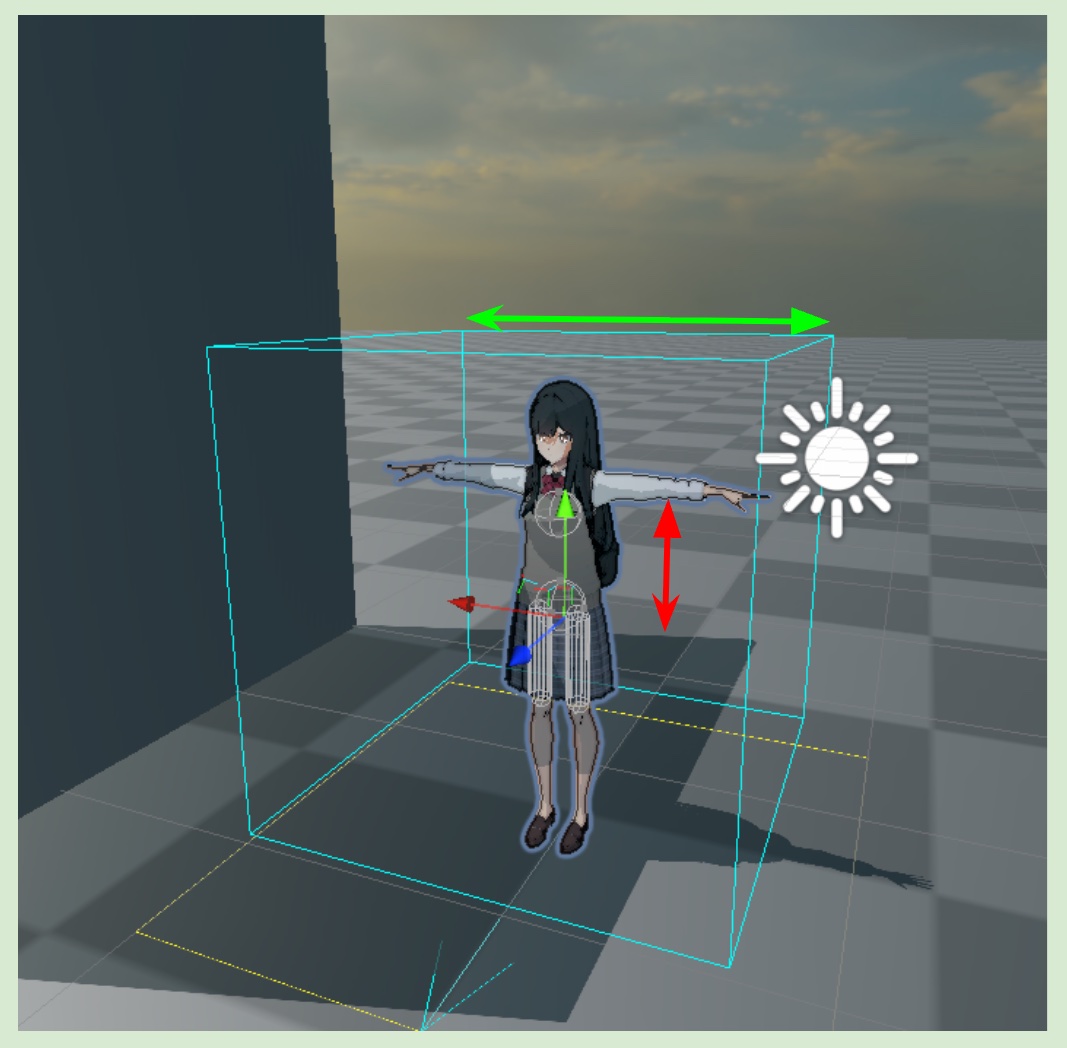
Use Character Center Position Offset to adjust the cube’s center.
Use
Self Shadow Cutoff AABB Sizeto adjust the Cube Proxy's overall size.
💡 Try to size the cube so that it fully encloses the character without being unnecessarily large. Keep in mind that the character will not receive shadows from anything located inside this cube.
2-3 Disable ASP ShadowMap (Legacy) If It Is Enabled
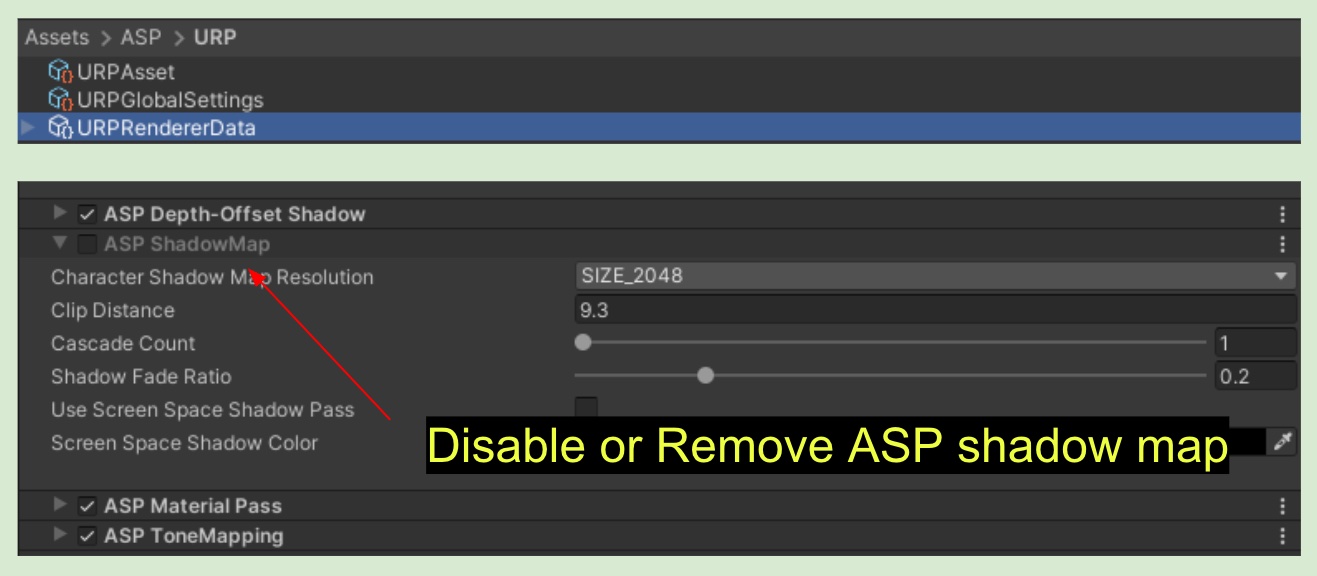
- The Cube Proxy prevents self-shadowing without another Character-Only Shadow Map. If ASP ShadowMap is still enabled in the Renderer Data, disable it. Unity 6.5 has no such Renderer Feature and does not show a missing checklist item.
3. Legacy ASP ShadowMap Setup (Unity 2022.3, 6.0, and 6.3 only)
⚠️ The following workflow applies only to release lines that still contain the ASP ShadowMap Renderer Feature. Do not combine it with the Cube Proxy. Unity 6.5 does not support it.
3-1 Exclude the Character from the Built-In Shadow Map
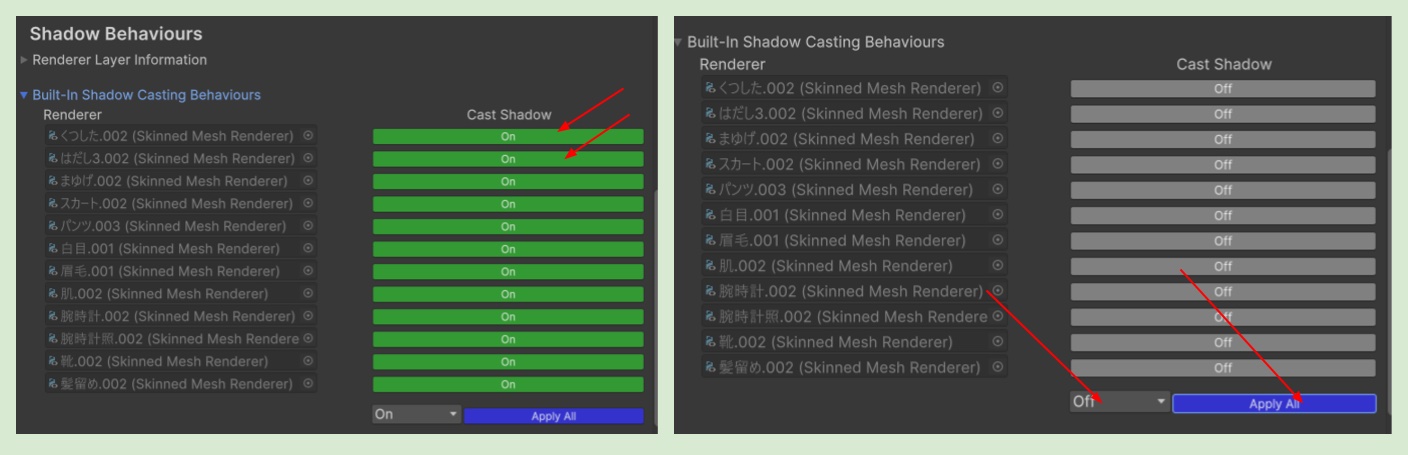
First, go to the Built-In Shadow Casting Behaviour category. Here, we can check whether all the renderers under the character are currently rendering to the built-in shadow map
To control the behaviour individually, you can click on each toggle. Or select Apply All at the bottom to turn on or off all shadow casters. Here, we set all the built-in shadow cast behaviors to OFF.
This exclude the character from being rendered into the built-in shadow map.
3-2 Display Character Shadows on Other Static Scene Objects
As long as the material uses the ASP/Character or ASP/Eye as target shader, it will be rendered into the ASP's Character-Only Shadow Map. In order to allow other non-ASP materials to receive character shadows (such as the standard PBR material used in the scene), we need to change the original Universal Render Pipeline/Lit to ASP/UniversalPBRLit. ASP/UniversalPBRLit is exactly the same as the built-in PBR in terms of functionality. The only difference is that in the code, it will additionally sample the ASP's Character-Only Shadow Map.
💡 ASP/UniversalPBRLit uses the exact same forward rendering code as Universal Render Pipeline/Lit, with the only difference being the additional sampling of the ASP ShadowMap.
This is exactly what you need to do if your other custom shader needs to sample ASP Shadow Map.
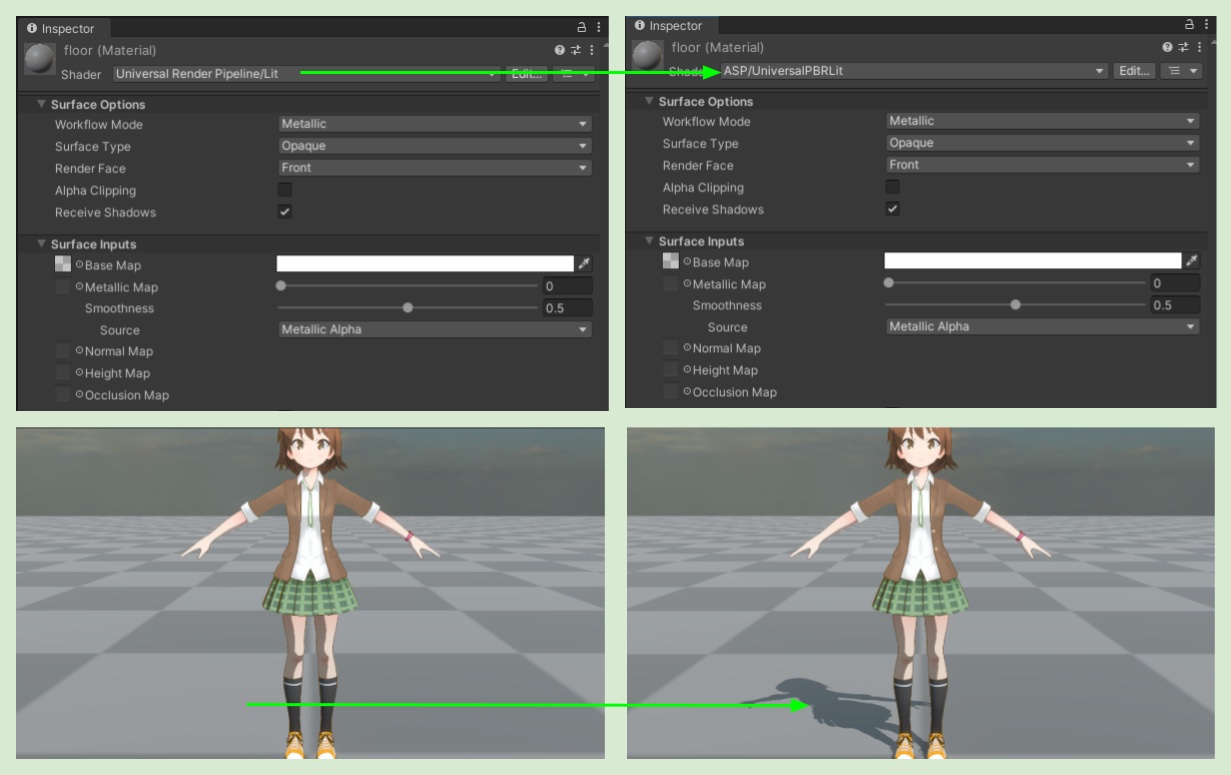
3-3 Control Which Materials Receive Character Shadows
In ASP Extra Shadow Behaviours, toggles under Character-Only Shadow Map category on the left side of the panel allows us to enable a selected parts that can receive character self-shadows without degrading the visual appearance, according to our needs. For example, legs and clothes. In most cases, they can all be set to Not received.
4. Specify Body Parts That Cast and Receive Depth-Offset Shadow
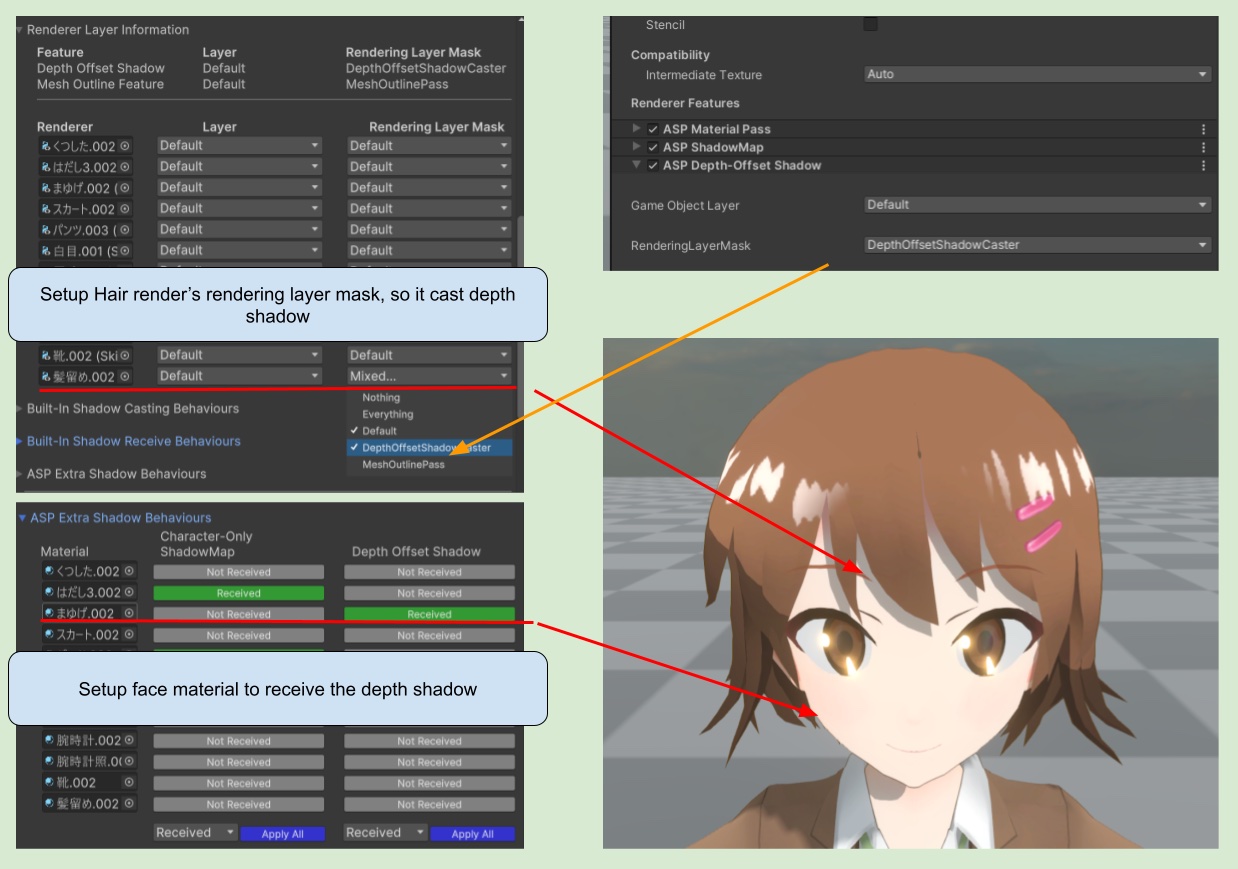
First, verify the project's Rendering Layer Mask settings and the Depth Offset Shadow Renderer Feature.
1. Configure the Project's Rendering Layer Mask and Depth Offset Shadow Renderer Feature
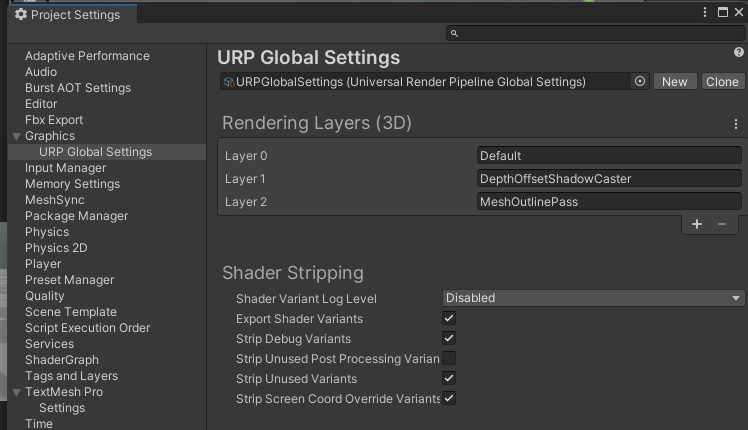
- In the URP Global Setting, set up the Rendering Layer Mask.
- In Edit > Project Settings > URP Global Setting, add a new Rendering Layer Mask (Rendering Layers(3D)). name it a accordingly , such as: DepthOffsetShadowCaster.
- Set up the ASP Depth-Offset Shadow.
In the Project window, find the URP Renderer Data that stores all Renderer Features.
Expand the Renderer Features list and find ASP Depth-Offset Shadow.
In the panel, setup the layer and rendering layer mask for the depth-offset shadow.
💡 Please note that a Layer can only have a single Layer setting and cannot be multi-selected. However, Rendering Layer Masks can be multi-selected.

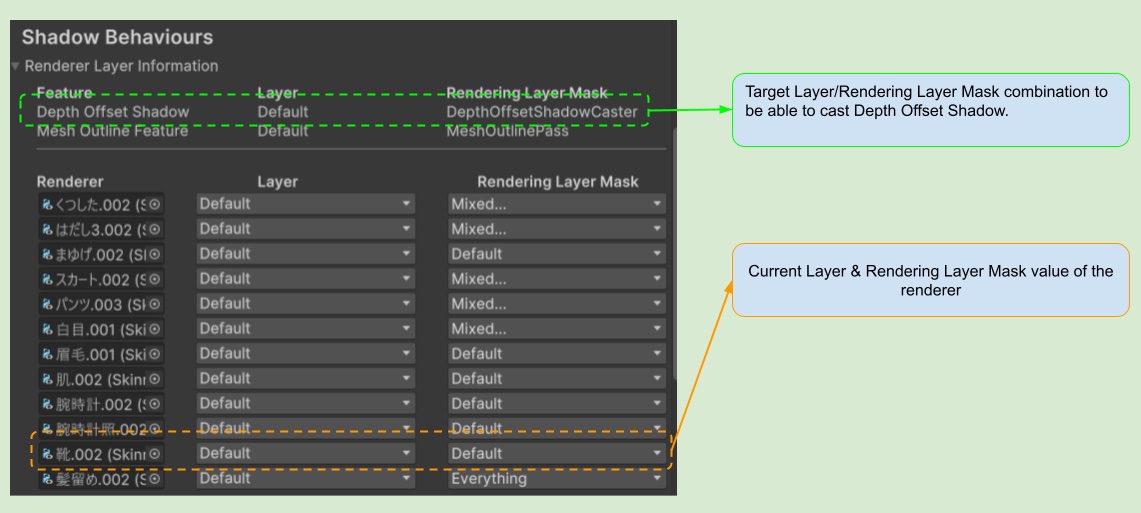
When you expand the Rendering Layer Information item in the ASP Character Panel, you will see the following information.
| Item Name | Description |
|---|---|
| Layer | Can be set in the Editor for each game object. Each game object can only have one layer, and layers are shared with the physics system. This makes layers inflexible |
| Rendering Layer Mask | Can be set independently for each renderer. Rendering Layer Masks can be multi-selected, which makes them more flexible. |
First, confirm the target layer and rendering layer mask of the Depth Offset Shadow above.
Then, set the layer value and rendering layer mask value for each renderer.
If the layer matches and the combination of the renderer's own rendering layer mask contains the value set by Depth Offset Shadow, then the renderer will cast a depth offset shadow.
⏭️ Go to next page → 3️⃣ 3. Character Rendering Example - Cel Shading